SAROO HDLoader Elite Version 64GB – Flash Cart & Optical Drive Emulator (ODE) - SEGA Saturn
💿 SD Card Game Loading For Original Sega Saturn 💿
💾 Ready To Play With A 64GB SanDisk Ultra Card 💾
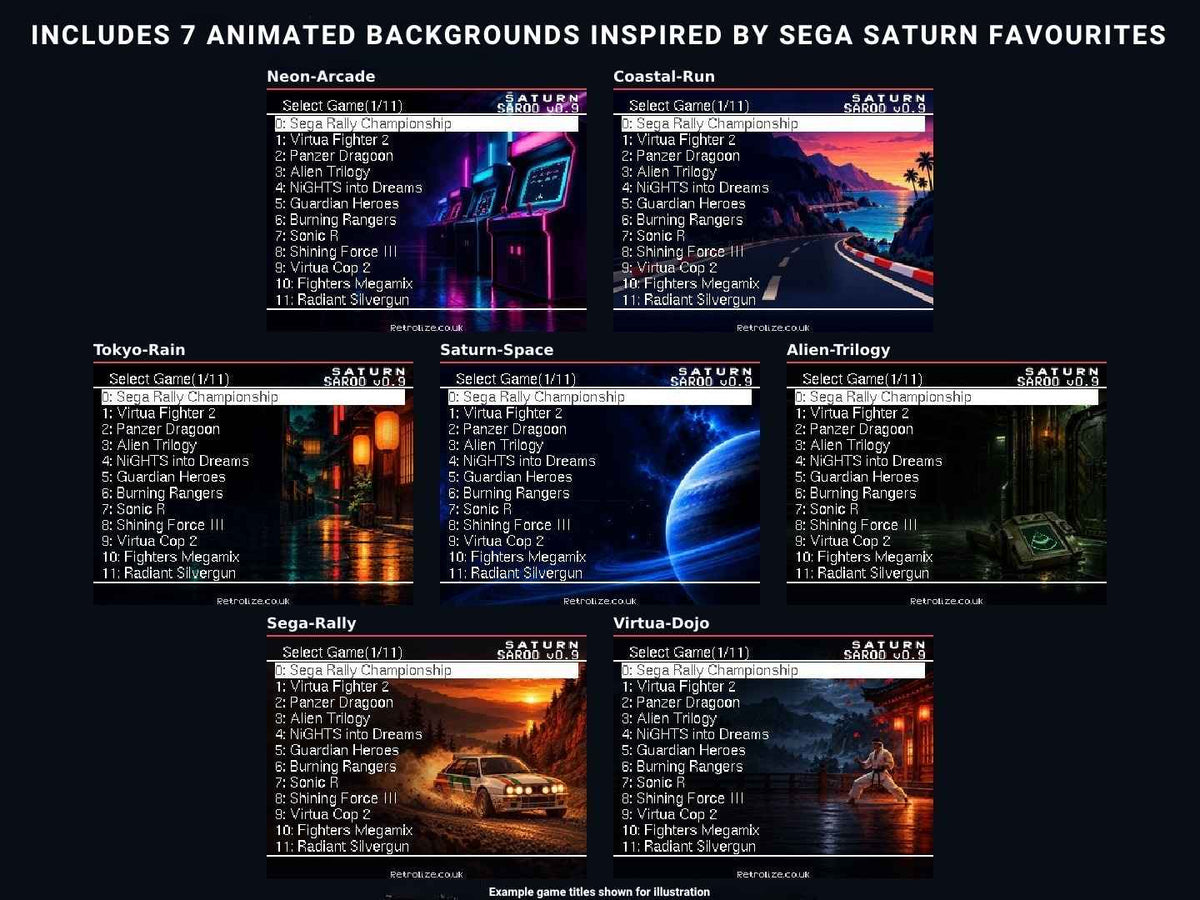
🎨 7 Exclusive Animated Menu Backgrounds From Retrolize 🎨
⚡ Faster Loading & Reduced Reliance On Original Discs ⚡
🧠 1MB & 4MB RAM Expansion & Save Memory Functions 💾
📂 Supports BIN/CUE & ISO Game Images 📂
⚙️ Customisable Menu Backgrounds, Music & Cover Artwork ⚙️
🔄 Latest Hardware Revision & SAROO v0.9 Firmware Installed 🔄
🔌 Cartridge-Slot Connection With No Console Modification Required 🔌
🛡️ 12-Month Retrolize Warranty 🛡️
Couldn't load pickup availability
Description
Description
The SAROO HDLoader Elite Version 64GB is a cartridge-based SD loader, flash cart and optical drive emulator for original Sega Saturn consoles. It loads compatible Saturn game images from a memory card through the console’s cartridge slot, providing convenient access to your library while reducing reliance on original discs and the ageing CD mechanism.
The SAROO supplied by Retrolize uses the latest hardware revision, with SAROO v0.9 firmware already installed. The included 64GB SanDisk Ultra memory card is prepared for use, so the package is ready to play straight from the box. No initial card preparation, firmware installation or computer setup is required to get started.
SAROO emulates the Saturn’s CD-block functions using dedicated hardware. Games continue to run on the original console, with data supplied from the memory card. Installation does not require opening the console, soldering or removing the original optical drive, making it a practical option for owners who want SD-based loading without an internal conversion.
SAROO supports FAT32 and exFAT storage formats and BIN/CUE and compatible ISO game images. BIN/CUE support includes images containing a single BIN file or multiple BIN tracks. For games with separate CD audio tracks, retain a complete BIN/CUE image to preserve the audio and track layout when adding your own files.
Games are organised into folders on the card and selected through the SAROO menu. Loading can be substantially quicker than disc-based access, although the improvement varies between games and individual loading sequences.
The SAROO sold by Retrolize.co.uk also includes seven exclusive animated menu backgrounds. These provide a choice of designs for personalising the SAROO interface. Animated backgrounds change the appearance of the menu without changing the graphics of the games themselves.
Alongside game loading, SAROO provides 1MB and 4MB RAM expansion support for compatible Saturn software. These functions provide the additional working memory required by supported games and are separate from the 64GB card used for storage. Save-memory and backup-management functions also help you organise game progress.
The menu supports further customisation through compatible background music and game-cover artwork files. These features require correctly prepared assets and the appropriate configuration; adding further game images does not automatically create corresponding artwork or music.
SAROO is intended for original Sega Saturn consoles, including PAL, NTSC-U and NTSC-J systems. Game compatibility depends on the console hardware, installed firmware, game revision, image files and configuration. Some titles require additional settings, and multi-disc procedures vary between games. Firmware development continues to improve compatibility and functionality.
The SAROO HDLoader Elite package is supplied from UK stock with fast UK delivery, tracked international delivery to supported destinations and a 12-month Retrolize warranty.
Explore our Sega Saturn parts, mods and upgrades. For compatible wireless controller options, see our BlueRetro Sega Saturn Bluetooth Controller Adapter.
Specifications
Specifications
Product Name: SAROO HDLoader Elite Version 64GB
Product Type: Sega Saturn SD loader, flash cart & cartridge-based optical drive emulator
Version: Elite
Hardware Revision: Latest hardware revision
Installed Firmware: SAROO v0.9
Supplied Configuration: Ready to play straight from the box
Platform: SAROO
Console Connection: Sega Saturn cartridge slot
Power Source: Console cartridge slot
Included Storage: Prepared 64GB SanDisk Ultra memory card
Supported Card File Systems: FAT32 & exFAT
Game Image Formats: BIN/CUE & compatible ISO images
BIN/CUE Support: Single-BIN & multiple-BIN images
Standalone ISO Support: Compatible 2048-byte-sector images
Game Directory: /SAROO/ISO/
RAM Expansion: 1MB & 4MB support for compatible software
Save Functions: Save memory & backup management
Menu Backgrounds: Compatible static & animated GIF files
Retrolize Background Collection: 7 exclusive animated menu backgrounds included
Menu Music: Supported with correctly prepared PCM files
Game Cover Artwork: Supported with compatible artwork data
Firmware Updating: Supported using hardware-compatible SAROO releases
Initial Card Preparation Required: No
Initial Firmware Installation Required: No
Console Modification Required: No
Soldering Required: No
Optical Drive Removal Required: No
External Power Supply Required: No
SKU: SAROO-ELITE-64GB
Supported Systems
Supported Systems
Original Sega Saturn Consoles: Model 1 & Model 2, subject to hardware compatibility
PAL Sega Saturn Consoles: Supported, subject to game & hardware compatibility
NTSC-U Sega Saturn Consoles: Supported, subject to game & hardware compatibility
NTSC-J Sega Saturn Consoles: Supported, subject to game & hardware compatibility
BIN/CUE Game Images: Compatible single-BIN & multiple-BIN images
ISO Game Images: Compatible standalone 2048-byte-sector images
RAM Expansion Software: Compatible games requiring 1MB or 4MB expansion RAM
Storage File Systems: FAT32 & exFAT
Critical Info
Critical Info
SAROO Package Only: This listing is for the SAROO HDLoader Elite cartridge, included 64GB SanDisk Ultra memory card and seven exclusive animated menu backgrounds. A Sega Saturn console, controller, display, video cable and card reader are not included.
Ready To Play: Supplied configured and ready to play straight from the box, with SAROO v0.9 firmware installed and the included 64GB SanDisk Ultra memory card prepared for use. No initial card preparation or firmware installation is required.
Hardware & Firmware: The SAROO sold by Retrolize uses the latest hardware revision and is supplied with SAROO v0.9 firmware already installed.
Compatible Consoles: Designed for original Sega Saturn hardware. Compatibility can vary with motherboard revisions, cartridge-slot condition and installed firmware. Do not assume that every modified console or Saturn-compatible system has been verified.
Cartridge-Based Installation: SAROO connects through the cartridge slot. Normal installation does not require opening the console, soldering or removing the original CD drive.
Game Compatibility: Compatibility is not universal. Individual games may require configuration changes, a different supported firmware release or corrected image files. A particular compatibility percentage is not a guarantee that a specific game will work.
Game Files: When adding your own images, use compatible BIN/CUE or ISO files. For BIN/CUE games, keep the CUE file and all associated BIN tracks together, with matching filenames. Retain BIN/CUE for games with separate CD audio tracks to preserve their audio and track layout. Standalone ISO support covers compatible 2048-byte-sector images.
Memory Card Preparation: The included card is already prepared for use. FAT32 and exFAT are supported when preparing replacement storage. Preserve the supplied SAROO system files and make a complete backup before formatting, updating or changing the card’s contents.
RAM Expansion: The 1MB and 4MB functions provide additional working memory for compatible games. They are separate from game storage and save memory.
Cartridge Slot Availability: SAROO occupies the console’s cartridge slot. A separate RAM cartridge or Action Replay cartridge cannot occupy the same slot at the same time.
Region & Video Timing: Support for game images from different regions does not change the console’s video hardware or automatically convert a PAL console to 60Hz. Game behaviour and display compatibility still depend on the console and software.
Multi-Disc Games: Disc-change and save-transfer procedures depend on the title and firmware. Do not assume that every multi-disc game supports automatic or uninterrupted switching.
Save Backups: Keep regular copies of the memory card’s save and configuration files. Save-memory emulation is not the same as an emulator-style save-state feature.
Hot Plugging: Always switch the Saturn off before inserting or removing SAROO or its memory card. Do not remove power while data is being saved or firmware is being updated.
First-Time Setup
- Switch the Sega Saturn off.
- Ensure the supplied 64GB SanDisk Ultra memory card is inserted into SAROO.
- Insert the cartridge carefully into the Saturn’s cartridge slot without forcing it.
- Connect a compatible controller and switch the console on.
- Select a game from the SAROO menu and start playing.
- Always switch the console off before removing the cartridge or memory card.
Before adding files, changing backgrounds or updating firmware, back up the complete memory card using a compatible card reader and computer.
Adding Your Own Game Images
The included card is ready to use. These steps apply when adding further compatible images:
- Switch the console off and remove the memory card.
- Connect the card to a computer using a compatible card reader.
- Back up the complete card before making changes.
- Keep the supplied SAROO system files in place.
- Create a separate folder for each game inside /SAROO/ISO/.
- For BIN/CUE images, place the CUE file and all associated BIN tracks together in the game’s folder. For a compatible standalone ISO image, place the ISO file in its game folder.
- Safely eject the card from the computer and return it to SAROO while the console is off.
- Switch the console on and check the newly added game’s controls, picture, sound and saving behaviour.
Using The Exclusive Animated Menu Backgrounds
The SAROO sold by Retrolize.co.uk includes seven exclusive animated menu backgrounds. Each background is stored in its own folder inside the Backgrounds folder on the supplied SD card.
To change the active background:
- Switch the console off and remove the SD card.
- Insert the SD card into a PC using a compatible card reader.
- Open the Backgrounds folder.
- Open the folder containing your chosen background and copy the image/GIF file.
- Return to the SD card’s root folder, where the current background image is stored.
- Paste the copied file and choose to replace the existing background file when prompted.
- Safely eject the SD card, return it to SAROO and switch the console on.
Keep the Backgrounds folder intact so you can switch between the included designs whenever you like.
Save Memory & RAM Expansion
SAROO’s RAM expansion and save-memory functions serve different purposes.
1MB & 4MB RAM Expansion: Provides additional working memory required by compatible games.
Save Memory: Stores game progress through the supported save functions.
Backup Management: Allows supported save-management operations through the installed firmware.
Where the firmware offers different save locations or modes, check which one the game is using before moving or deleting data. Back up the card before transferring saves or changing firmware.
Using Multi-Disc Games
Keep each disc’s image files organised separately and retain all required tracks.
Follow the procedure appropriate to the game and installed firmware. Some titles use a save made at the end of one disc to continue on the next; others require different handling. Games that import progress from another title or scenario may also require specific save-management steps.
If a disc change fails, preserve your saves and check the title-specific instructions before modifying files or configuration.
Firmware Updating
The Retrolize SAROO is supplied ready to play with v0.9 firmware already installed. No firmware installation is required before first use.
For future updates, use the official SAROO firmware releases as the reference for release notes and update requirements.
Only install a release confirmed compatible with the exact cartridge hardware. Back up the complete memory card, including saves, configuration and the exclusive background collection, before proceeding.
Follow all stages documented for the chosen release. Some updates require an additional FPGA update performed on the Saturn; replacing files on the memory card alone may not complete the process.
Keep the console powered throughout any on-console update and wait for completion before switching off. Do not mix files from different firmware packages or assume that unofficial forks use the same update procedure.
Contact Retrolize before updating if you are unsure which files or procedure apply to your cartridge.
Connection & Control Troubleshooting
The SAROO Menu Does Not Appear: Switch the console off. Check that the cartridge is seated correctly and that the memory card is inserted properly. Confirm that the supplied system files remain in the correct location. Do not force or adjust the cartridge while the console is powered.
Games Do Not Appear In The Menu: Check the folder structure inside /SAROO/ISO/. Confirm that any files you have added are extracted and in a supported BIN/CUE or ISO format.
A Game Fails To Start: For BIN/CUE images, check that the CUE file references the correct BIN filenames and that all tracks are present. For ISO images, check that the file is a compatible 2048-byte-sector image. Consult the compatibility information and configuration requirements for the exact game revision.
Music Is Missing Or Audio Is Incorrect: Check for missing audio tracks, incorrect CUE references or a damaged image. If the game uses separate CD audio tracks, use a complete BIN/CUE image rather than a standalone ISO containing only the data track. Some issues may also require game-specific configuration or a firmware fix.
A Game Freezes Or Runs Incorrectly: Test another known-working image, check the relevant firmware notes and restore any configuration changes that caused the problem. Faster storage does not resolve every software-compatibility issue.
Saved Progress Is Missing: Check the selected save location and save mode. Avoid formatting the card or deleting save files while investigating. Restore from your backup only after identifying the correct files.
The Animated Background Does Not Change: Open the Backgrounds folder, enter your chosen design’s folder and copy the image/GIF file. Paste it into the SD card’s root folder, replacing the existing background file. Keep the supplied filename unchanged, safely eject the card and restart the console.
Controller Inputs Do Not Respond Correctly: Check the controller connection and test a compatible wired Saturn controller directly. If using a wireless adapter, check its mapping, operating mode and compatibility separately.
Problems Begin After An Update: Stop making further firmware changes. Keep your backup intact and contact Retrolize with the cartridge details, installed version and a description of the problem.
Package Includes
Package Includes
1 × SAROO HDLoader Elite Version cartridge for Sega Saturn, latest hardware revision with v0.9 firmware installed
1 × 64GB SanDisk Ultra memory card, prepared and ready to play
7 × Exclusive animated menu backgrounds included with the Retrolize SAROO package
Warranty Information
This SAROO HDLoader Elite Version is covered by a 12-month Retrolize warranty against manufacturing defects and hardware faults arising during normal use from the date of delivery.
The warranty does not cover accidental damage, liquid damage, forced insertion, hot plugging, unauthorised modification, incorrectly performed or interrupted firmware updates, or firmware not explicitly confirmed as compatible with this exact cartridge model. A cartridge rendered unresponsive or unusable—commonly referred to as “bricked”—as a result of any such firmware update is not covered by the Retrolize warranty.
Compatibility differences caused by individual games or unsupported operating modes are not considered product faults.
Warranty claims remain subject to the full Retrolize warranty terms and are additional to the user’s statutory rights.
Additional Information
What Is The SAROO HDLoader Elite?
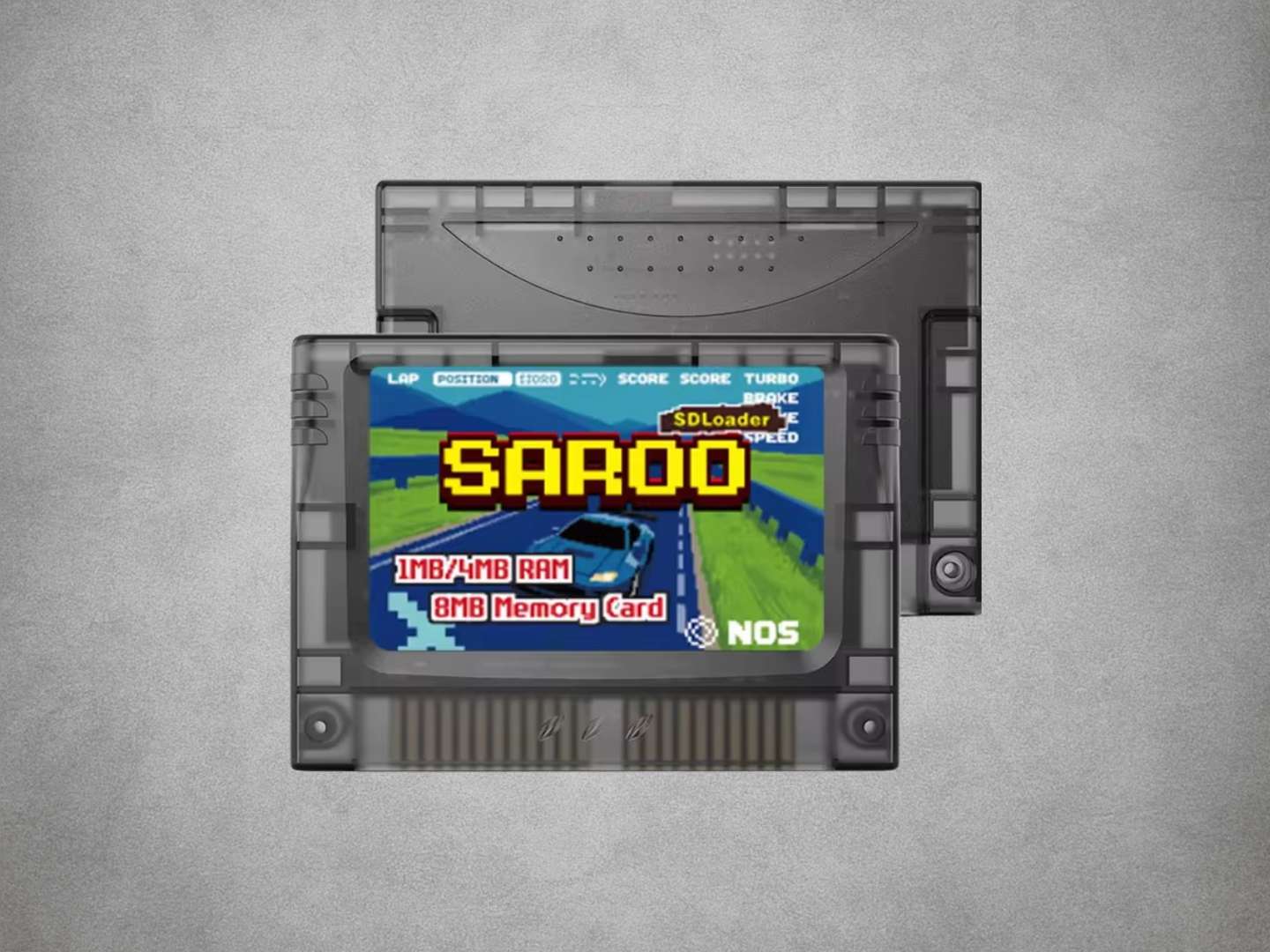
SAROO is a Sega Saturn cartridge-based SD loader. It supplies compatible game data from a memory card while the original Saturn hardware runs the game.
Is It Ready To Play Straight From The Box?
Yes. Retrolize supplies the SAROO configured with v0.9 firmware installed and a prepared 64GB SanDisk Ultra memory card. With the console switched off, insert SAROO and its supplied card, connect your controller, then switch on and select a game.
No initial card preparation or firmware installation is required.
Which Hardware & Firmware Does Retrolize Supply?
Retrolize supplies the latest SAROO hardware revision with v0.9 firmware already installed.
Is SAROO An Optical Drive Emulator?
SAROO emulates the Saturn’s CD-block functions to load compatible games from a memory card. It connects through the cartridge slot, so installation does not require physically replacing the internal optical drive.
Do I Need To Open Or Modify My Sega Saturn?
No. Normal installation uses the existing cartridge slot and does not require soldering or an internal modification.
Which Memory Card Is Included?
This package includes a 64GB SanDisk Ultra memory card, prepared and ready to use.
Does SAROO Support BIN/CUE & ISO Files?
Yes. SAROO v0.9 supports BIN/CUE images, including single-BIN and multiple-BIN layouts, plus compatible standalone ISO images using 2048-byte sectors.
For games with separate CD audio tracks, retain a complete BIN/CUE image so the audio tracks and their layout are preserved.
What Is Exclusive To The Retrolize Package?
The SAROO sold by Retrolize.co.uk includes seven exclusive animated menu backgrounds, giving you additional designs for personalising the SAROO menu.
Can I Change The Menu Background?
Yes. SAROO v0.9 supports a background file named mainmenu_bg.gif in the /SAROO/ folder. Follow the background instructions in Critical Info and keep a backup of the supplied designs.
Does It Support 1MB & 4MB RAM Expansion?
Yes, for compatible software. RAM expansion provides additional working memory for games that require it; it is separate from the memory card’s storage capacity.
Does It Support Saving?
SAROO provides save-memory and backup-management functions. Save behaviour depends on the game and selected settings. Keep regular backups of the card’s save files.
Does It Provide Save States?
Save-memory support should not be confused with save states. It handles supported game-save functions rather than promising the ability to freeze and restore any game at any moment.
Will Every Sega Saturn Game Work?
No universal compatibility guarantee applies. Results depend on the console, firmware, game revision, image files and configuration. Some titles require additional settings or remain incompatible.
Can I Play Multi-Disc Games?
Compatible multi-disc titles can be used, but the disc-change procedure varies. Follow the instructions for the specific game and firmware, and back up saves before making changes.
Does SAROO Make A PAL Saturn Output 60Hz?
No. SAROO does not change the console’s video hardware. Game-region compatibility and the console’s output timing are separate considerations.
Does It Add HDMI Output Or Increase Game Resolution?
No. SAROO changes how game data is loaded. The console continues to use its existing video output and supported display modes.
Can I Still Keep The Original CD Drive Installed?
Yes. SAROO does not require the original optical drive to be removed. Disc playback still depends on the drive’s condition and the relevant console and firmware support.
Do I Need A Separate Power Supply?
No. SAROO receives power through the Saturn’s cartridge slot.
Can I Update The Firmware?
Yes. Although v0.9 is already installed, future compatible releases can be applied by following the complete update procedure. Back up the card first and complete any required FPGA update.
Is International Delivery Available?
Tracked international delivery is available to supported destinations, with available services and delivery costs shown at checkout.
Share